Getting Started
SCORM Multi-Language Wrapper allows you to combine multiple SCORM packages (one for each language) into a single, unified package with a custom language selection interface.
What You'll Need
- Windows 10 or 11 - 64-bit operating system
- .NET 8.0 Runtime - Will be installed automatically if needed
- SCORM Packages - One SCORM 1.2 or SCORM 2004 package for each language
- Disk Space - Enough space for your source packages plus the output package
Installation
Download the Application
Download the latest version from the download page.
Extract the Archive
Extract the downloaded ZIP file to a location of your choice (e.g., C:\Program Files\SCORM Wrapper).
Run the Application
Double-click SCORM_Multi_Language_Wrapper.exe to launch the application. No installation required!
Step 1: Package Selection
The first tab is where you select your SCORM packages for each language.
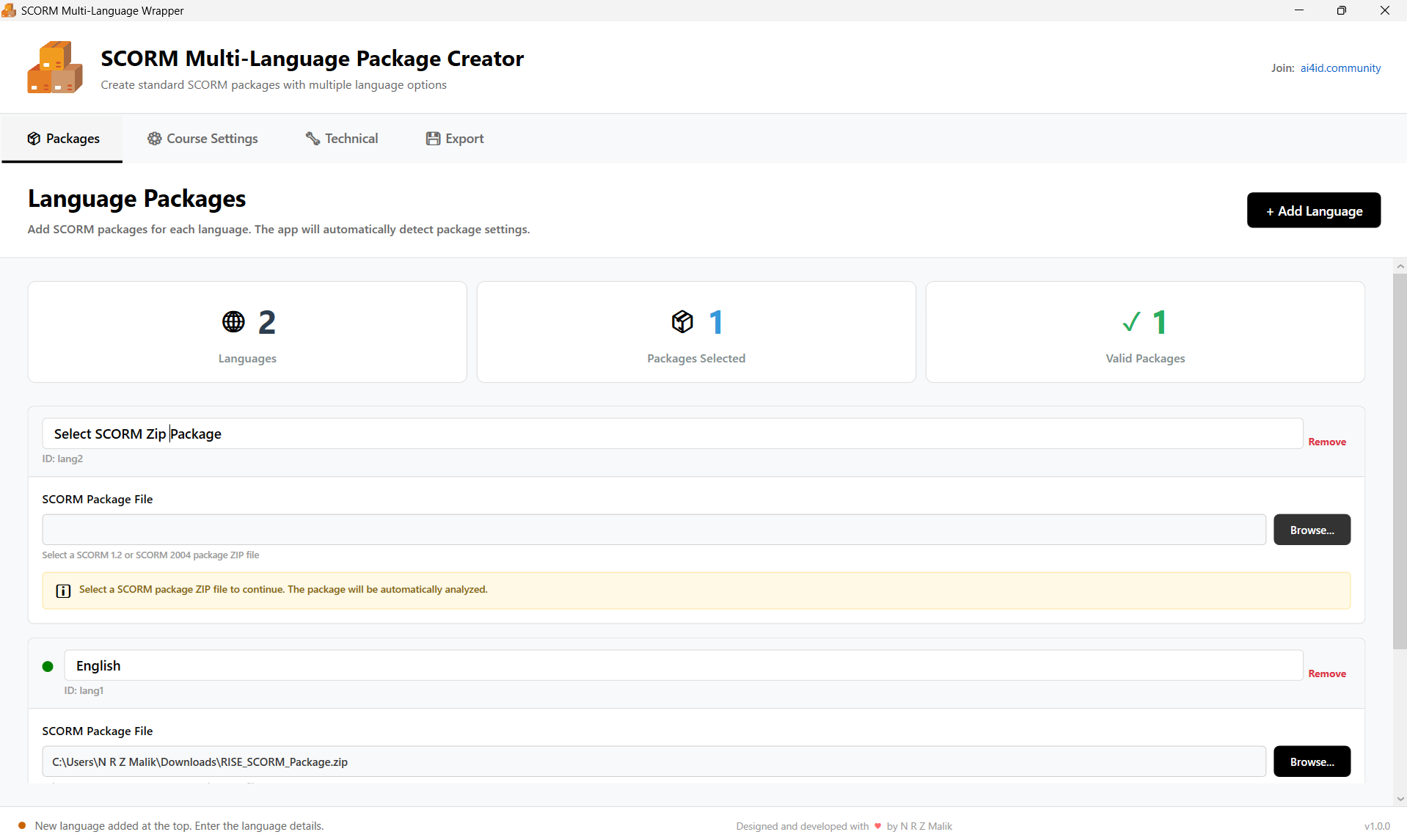
Adding a Language Package
- Click the "Add Language Package" button
- Select either:
- SCORM ZIP File - If your package is zipped
- SCORM Folder - If your package is in an extracted folder
- Browse to and select your SCORM package
- The application will automatically detect:
- SCORM version (1.2 or 2004)
- Course title
- Package structure
- Enter a Language Name (e.g., "English", "Spanish", "French")
- Optionally provide a Language Description that will appear on the language selection page
Managing Packages
- Edit - Click the edit icon to modify language name or description
- Remove - Click the delete icon to remove a package
- Reorder - The order of packages determines their display order on the landing page
Step 2: Course Settings
Configure the basic information and metadata for your wrapped package.
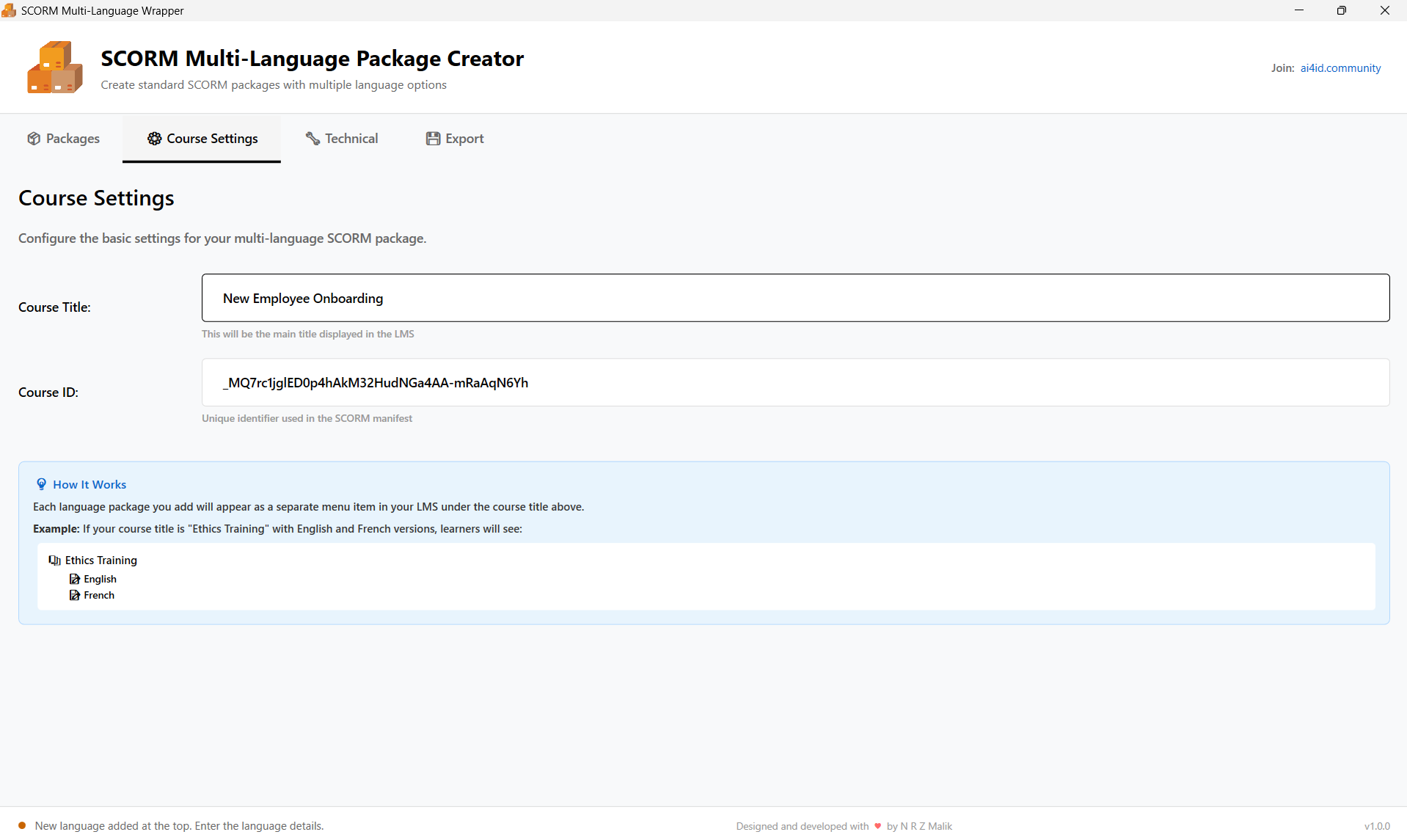
Required Fields
| Field | Description |
|---|---|
| Course Title | The main title of your multi-language course (appears in LMS) |
| Course Identifier | Unique identifier for the course (e.g., "course-ml-2024-001") |
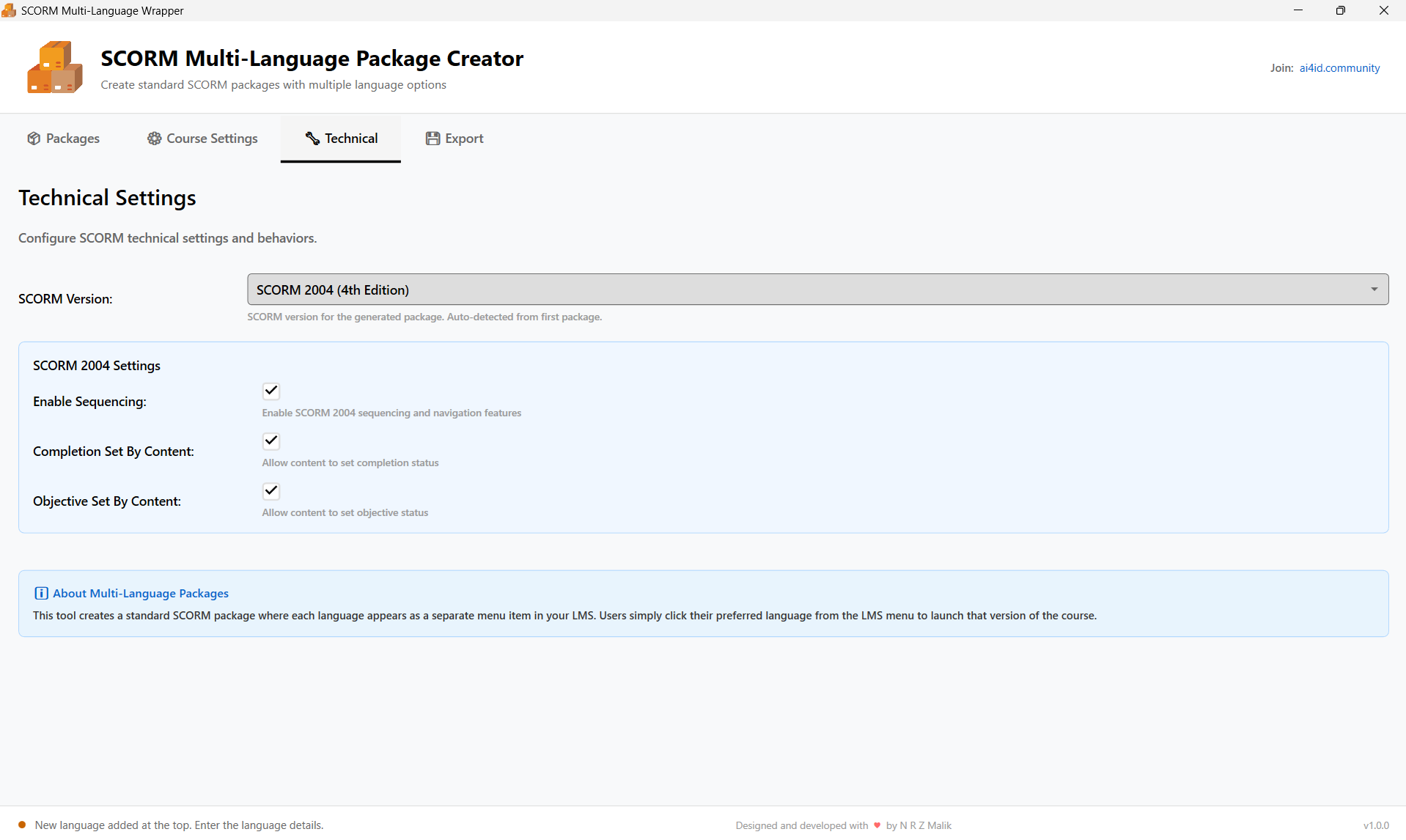
| SCORM Version | Must match your source packages (SCORM 1.2 or SCORM 2004) |
Optional Metadata
- Description - Brief description of the course
- Version - Course version number (e.g., "1.0", "2.1")
- Keywords - Comma-separated keywords for searchability
- Author/Organization - Creator information
- Copyright - Copyright notice
Step 3: Technical Settings
Configure SCORM behavior, tracking, and completion rules.
Completion Tracking
| Option | Description |
|---|---|
| Track Completion | Enable to track when learners complete the course |
| Completion Criteria |
|
Score Tracking
- Track Score - Enable to track learner scores
- Mastery Score - Minimum score required to pass (0-100)
- Score Rollup - How to calculate overall score from multiple SCOs
- Average - Average of all SCO scores
- Sum - Total of all SCO scores
- First - Score from first SCO only
- Last - Score from most recently accessed SCO
Time Tracking
- Track Time - Enable to track time spent in course
- Time Limit - Maximum time allowed (optional)
Navigation & Display
- Navigation Controls - Show/hide previous and continue buttons
- Launch in New Window - Open course in a popup window
- Window Size - Set custom width and height for popup
- Allow Resize - Allow learners to resize the window
Step 4: Export Package
Generate and download your final SCORM package.
Export Process
- Click the "Preview Package" button to verify your settings
- Review the package summary and checklist
- Click "Export Package"
- Choose a location and filename for your ZIP file
- Wait for the export process to complete
- Your SCORM package is ready to upload to your LMS!
What's Included
Your exported ZIP file contains:
- imsmanifest.xml - SCORM manifest file
- Landing page - Custom language selection interface
- Language folders - Complete package for each language
- Shared resources - Common files, images, and libraries
Feature Details
Language Detection
The tool can optionally detect the learner's browser language and automatically pre-select or redirect to the matching language version.
Independent Tracking
Each language version maintains its own completion and score tracking. If a learner switches languages mid-course, their progress is tracked separately for each version.
Responsive Design
The generated landing page is fully responsive and works on desktop, tablet, and mobile devices.
Standards Compliance
All generated packages are fully compliant with:
- SCORM 1.2 (2001, 2nd Edition)
- SCORM 2004 (3rd Edition and 4th Edition)
Troubleshooting
Possible causes:
- Package is not a valid SCORM package (missing imsmanifest.xml)
- Package structure is incorrect
- ZIP file is corrupted
Solution: Verify your package is a valid SCORM package by testing it in an LMS first. Ensure the imsmanifest.xml file is in the root of the package.
Possible causes:
- Very large packages (>1GB total)
- Insufficient disk space
- Antivirus software interfering
Solution: Ensure you have at least 2-3x the total package size in free disk space. Temporarily disable antivirus scanning of the output folder. Consider compressing large media files in your source packages.
Possible causes:
- LMS doesn't support the SCORM version used
- LMS has file size upload limits
- LMS configuration issues
Solution: Verify your LMS supports the SCORM version you're using. Check LMS documentation for file size limits and upload requirements. Test a simple, known-working SCORM package first to rule out LMS configuration issues.
Possible causes:
- Custom logo file path is incorrect
- HTML in welcome message is malformed
- Browser compatibility issues
Solution: Use the preview feature to test before exporting. Ensure logo files are in supported formats (PNG, JPG, SVG). Validate any custom HTML. Test in multiple browsers.
Possible causes:
- Source packages have tracking issues
- LMS doesn't support chosen tracking method
- Technical settings misconfigured
Solution: Test each source package individually in your LMS to verify they track correctly. Review technical settings and ensure they match your LMS capabilities. Consult your LMS administrator if needed.
Best Practices
Before You Start
Always test each language package individually in your LMS before wrapping them together.
Ensure all language packages use the same SCORM version (all 1.2 or all 2004).
Compress images and videos in your source packages to reduce overall package size.
Naming Conventions
Use native language names (e.g., "Español" not "Spanish") so learners can easily identify their language.
Use meaningful course identifiers (e.g., "safety-training-2024-v1" not "course123").
Landing Page Design
Avoid cluttering the landing page. The main goal is language selection.
Use colors and logos that match your organization's branding.
Preview the landing page at different screen sizes to ensure it works on all devices.
Quality Assurance
Always test the wrapped package in your actual LMS before distribution.
Launch and test each language version to ensure they all work correctly.
Complete a test run and verify that completion and scoring data is properly recorded.
Frequently Asked Questions
Can I mix SCORM 1.2 and SCORM 2004 packages?
No. All language packages must use the same SCORM version. Choose either SCORM 1.2 or SCORM 2004 for all packages.
Is there a limit to the number of languages?
No technical limit exists, but practical considerations (file size, user experience) suggest keeping it reasonable. Most users include 2-10 languages.
Can I update a package after exporting?
The tool doesn't support editing exported packages. To make changes, adjust your settings and re-export the package.
Does it work with xAPI/Tin Can?
No. This tool is specifically for SCORM packages. xAPI support may be added in future versions.
Can learners switch languages mid-course?
Learners can exit and select a different language, but their progress is tracked separately for each language version.
What if my LMS has a file size limit?
Optimize your source packages by compressing media files. Consider providing language versions as separate courses if the combined package is too large.
Can I use custom fonts on the landing page?
Yes! You can reference web fonts (like Google Fonts) or include custom font files in your package.
Is my data collected or sent anywhere?
No. The application works completely offline. No data is collected, sent, or stored anywhere except your local computer.
Need Help?
Community Support
Join our community forum to ask questions, share tips, and connect with other users.
Visit CommunityAdditional Resources
Download example packages, templates, and additional documentation.
View Resources